Posts

SXA : Custom Date Format using Rendering Variant tool

Image
In this blog I will show you how to apply a custom date format in Rendering Variant using the Rendering Variant tool that implements NVelocity templates. For example if you have event page which inherent from Page template and you have "FromDate"and "ToDate" fields If we need to display date as below format You need to create a variant under Page content let give it name "Event Details" this variant will have "From Date" and " To Date" as VariantDateField Note that the options for date format is limited by what we have in the foundation /sitecore/system/Settings/Foundation/Experience Accelerator/Rendering Variants/Enums/Date Formats SXA provided date format tool we can use it inside the "Variant Template" so we add "Custom Date" from Template as below and set custom Template value and the now if you select the Event Details variant,the new date format will appli...

Adding Custom information to Form Report in WFFM

Image
WFFM provide a lot of features to create Form in Sitcore. enable you to create your custom form from available list of types and save actions. But what if I want to include the language and Referrer url in From Report . we can do that by creating Custom Hidden Fields which will Contain this information so when you save the Form you will be able to see this information in the report . that will include : Step 1: Create Custom Hidden Fields. you can create custom Hidden Language Field by added this custom class you can create custom Hidden Referrer URL Field by added this custom class Step 2:  added new Field types Items under Custom folder and make sure to fill the "Assembly" and "Class" fields Step 3: added this new Custom fields to the form Now you can see the information in Form report.

Set Campaign for non Sitecore website using FXM

Image
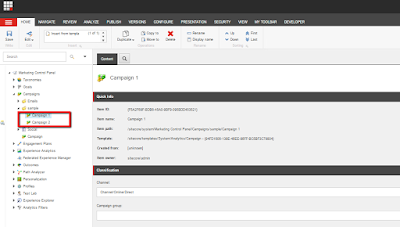
In the article we  will use Federated Experience Manager (FXM)  to manage campaign from non sitecore website. First step : create your campaign create campaign 1 which and in the rule use the querystring sc=1 and another campaign 2 with rule to use querystring  sc=2 as below Second step:  Register your site and save changes Third step :Publish the setup Fourth step :Added the script to your website and now if you go go to non sitecore website and use sc=1 as query string the campaign 1 will be trigger while if you use sc=2 the campaign  2 will be trigger  

Customization in Personalized Email Campaign

If we are using the Email Experience Manager for daily news camping and we have list of recipient  they should receive this email daily if the is only new news added in this case we can simply overwrite the sent pipline to make sure that we have news. but what if the list of news personalized to the recipient . in this case  recipient  1 maybe have news while recipient 2 didn't   to solve this we can do Added hidden field  to the generated email a Set the value of SendEmail in page load and in the sent pipeline we can check if the flag is in the SendEmail = true we send the message other wise we know that this message is empty and we can ignore sending the message then you have to update your configurations